A “media file truth” check
How to find duplicates, missing originals, and silent re-encodes.
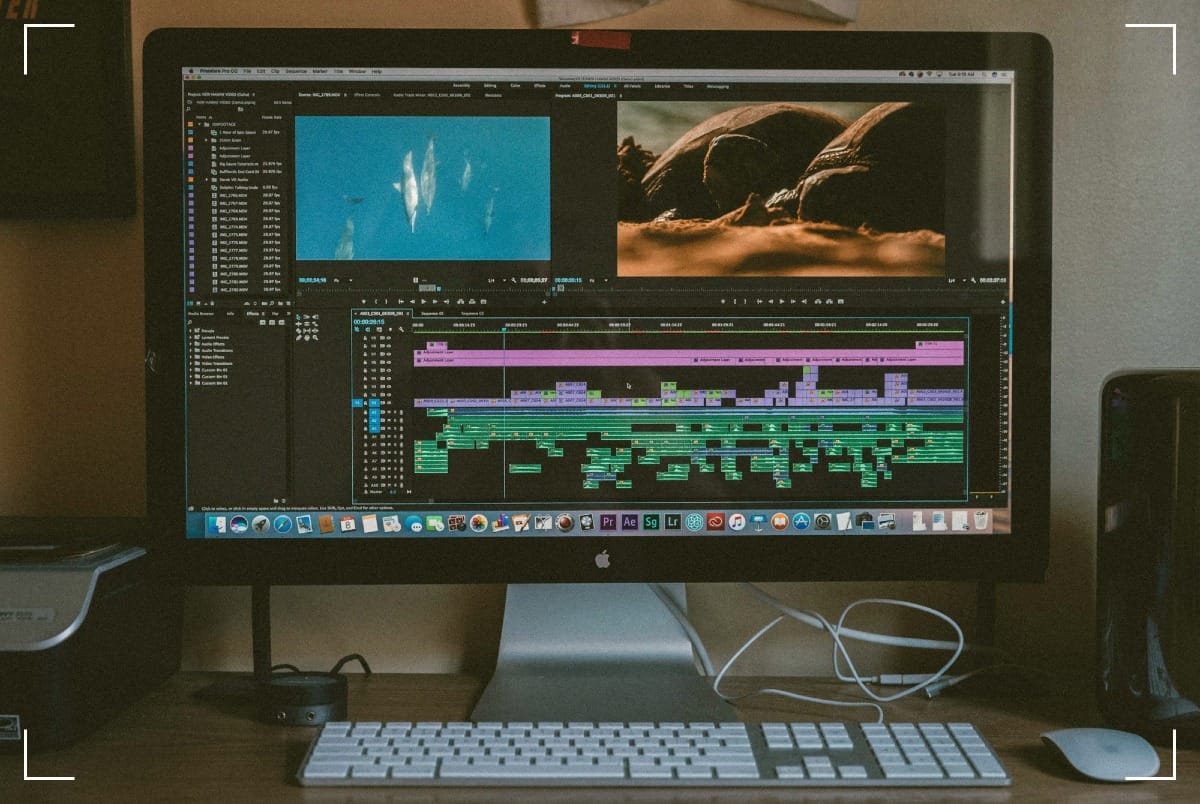
Your media library can look clean while it rots underneath. Same filenames, different guts. “Edited” copies that quietly replaced the only original. A folder full of videos that play fine until minute 43, then fall apart like cheap alibis.
A media file integrity check is how you stop guessing. You collect facts, not vibes. You prove what’s real, what’s duplicated, what’s missing, and what got re-encoded when you weren’t looking.
You don’t need a lab. You need a routine. And the nerve to trust evidence over memory.
Start with a media file truth check
Before you delete anything.
Important rule: don’t clean up while you’re still blind. Make a snapshot copy (or at least a read-only mount) so your checking doesn’t become the damage.
Start by separating three different problems that get mixed up on bad days:
- Corruption: the file can’t be decoded all the way through.
- Duplicates: two files that are the same, or close enough to trick you.
- Silent changes: same content, different encoding, stripped metadata, new timestamps.
For video and audio integrity, ffmpeg is the gatekeeper. It doesn’t care about your feelings.
- Fast decode scan:
ffmpeg -v error -i "file.mp4" -f null - - Stream-focused scan:
ffprobe -v error -show_entries format=duration:stream=codec_name,codec_type,bit_rate,width,height,r_frame_rate -of default=nw=1 "file.mp4"
If you want a purpose-built sweep across folders (photos, videos, audio), consider the open-source CLI tool check-media-integrity. It’s a blunt instrument, which is what you want at the start.
Now the trap most people step into: timestamps. Filesystems lie all the time.
- Copy tools can rewrite
mtime. - Timezone fixes can shift EXIF dates without changing the pixels.
- Cloud sync can “touch” files during conflict resolution.
So treat timestamps as hints, not proof. If you need metadata you can interrogate, use ExifTool:
- Quick camera dates:
exiftool -time:all -a -G1 -s "IMG_1234.JPG" - Batch export dates:
exiftool -r -csv -CreateDate -DateTimeOriginal -ModifyDate /path/to/library > dates.csv
If you’re comparing analysis tools, this FFprobe vs MediaInfo comparison lays out the strengths and limits in plain terms. In practice, you’ll use both. ffprobe for scriptable truth, MediaInfo for quick human scanning and “what did this come from?” clues.
Duplicates: byte-for-byte twins, and the ones wearing a mask
Some duplicates are harmless. A second copy on another drive. A mirror for backup. Fine.
The dangerous ones are the near-duplicates. Same scene, same duration, different encoding. One of them is the original; the other is a second-generation story. Softer edges, crushed shadows, smeared noise. Still watchable. Still wrong.
Start with the cleanest win: cryptographic hashes. If the hashes match, the files are identical. No debate.
- Create a SHA-256 manifest:
hashdeep -r -c sha256 /path/to/media > SHA256SUMS.txt - Verify later:
hashdeep -a -k SHA256SUMS.txt -r /path/to/media
Then find true duplicates in place:
fdupes -r /path/to/mediardfind -makesymlinks true /path/to/media(use linking only when you’re confident and backed up)
If you prefer a GUI with serious teeth, Czkawka scales well without getting sloppy. Their write-up on how Czkawka detects duplicates is worth reading because it explains why “same name” is a junk signal. Available for Mac, Linux and Windows.
DupeGuru is another solid GUI when you want something calmer and cross-platform: dupeGuru duplicate finder. Also available for Mac, Linux and Windows.
When you hit near-duplicates, switch methods. Hashes won’t help because the bytes differ. That’s where perceptual matching comes in, the idea of “looks the same” even if it’s not bit-identical. For photos, Czkawka’s similar-image mode can help. For mixed image-and-video sets, this project is a starting point: Duplicate-Media-Finder.
Here’s a quick decision table you can live by:
| Evidence you see | What it usually means | What you do next |
|---|---|---|
| SHA-256 matches | Safe duplicate | Keep one, archive the other, or hardlink |
| Hash differs, same duration and frame size | Likely re-encode or remux | Compare codec, bitrate, encoder tags |
| Hash differs, same date/name pattern | Likely edited metadata or moved container | Check EXIF/QuickTime tags, then stream info |
| Perceptual match, different resolution/bitrate | Likely export/proxy | Tag it as derivative, don’t replace original |
Missing originals and silent re-encodes
The quiet damage.
Missing originals don’t announce themselves. They sit behind your “organized” exports and pretend everything’s fine.
You notice later. Years later. When you want the RAW. When you want the full-quality video. When you want the version before the app “optimized” it.
A practical way to catch missing originals is to define what an original looks like in your world, then scan for gaps.
- For photos: originals are often
.CR2,.NEF,.ARW,.DNG,.RAFplus the camera JPEG. - For video: originals might be
.MOVfrom a phone,.MP4from an action cam, or high-bitrate camera files.
Use file lists to compare basenames. Example pattern:
List likely originals:
find /media -type f \( -iname "*.cr2" -o -iname "*.nef" -o -iname "*.arw" -o -iname "*.dng" \) -printf "%f\n" | sed 's/\.[^.]*$//' | sort -u > originals.txtList likely originals
List exports:
find /media -type f -iname "*.jpg" -printf "%f\n" | sed 's/\.[^.]*$//' | sort -u > exports.txtList exports
Then compare with comm; Linux & Mac OS only:
comm -13 originals.txt exports.txt > exports_without_raw.txtCompare with comm; Linux & Mac OS only
Now the other threat, the one that ruins archives while you sleep: the silent re-encode.
A remux is just a container swap. The streams stay the same. A re-encode changes the stream. Quality shifts, encoder changes, GOP structure changes, bitrate behavior changes. The duration can remain identical, which is why people get fooled.
Interrogate the file like it owes you money:
Container and stream facts:
ffprobe -hide_banner -show_format -show_streams -of default=nw=1 "file.mp4"Container and stream facts
Look for encoder tags with MediaInfo (or JSON output if you script it):
mediainfo "file.mp4"Look for encoder tags
Pitfalls you should expect:
- Variable bitrate makes size comparisons unreliable.
- GOP changes can happen with “smart render” tools, even when the video feels unchanged.
- Metadata stripping happens when apps rewrite MP4 atoms, so dates vanish or shift.
- Timezone edits can make two copies look “different” to naïve tools while the content is identical.
If your “original” file has an encoder tag like Lavf or HandBrake and you don’t remember doing that, take it as a confession. Compare it to other copies. Find the cleanest lineage.
A repeatable audit routine
And a golden record that doesn’t lie
You don’t need heroics. You need a routine you can run when tired.
- Freeze a working copy (snapshot, read-only mount, or backup clone).
- Run corruption checks on video and audio (
ffmpeg -v error ... -f null -). - Generate checksums for the golden set (
hashdeep ... > SHA256SUMS.txt). - Find true duplicates (fdupes/rdfind/Czkawka), then decide what gets removed or linked.
- Hunt near-duplicates with perceptual tools, then label derivatives (exports, proxies, social versions).
- Compare expected originals vs exports (by extension and basename), then fix gaps while you still can.
Keep your “golden record” simple, boring, and consistent:
- Folder structure:
Media/YYYY/YYYY-MM-DD_Event/Device/ - Filenames:
YYYYMMDD_HHMMSS_Device_Sequence.ext(no spaces, no mystery) - Checksums: one
SHA256SUMS.txtper event folder, plus an optionalSHA256SUMS.txt.sigif you sign files - Sidecars: keep edits as
.xmpfor photos, and keep exported videos in anExports/subfolder so they never impersonate originals
When you finish, you’re not just cleaning. You’re putting your name on a record. Media file integrity checks work by telling your future self, “I didn’t guess, I verified.”