Apple Photos library move without the chaos
How to migrate to a new Mac and avoid duplicates.
They’re dug up from the bone yard, pieced together in the dark when the rest of the world is asleep. They cost something to tell.
If you want to keep the lights on in this place, if these words are worth more to you than a cheap cup of coffee, then step up. Don’t just be a ghost passing through. Become a member. Keep the ink flowing.
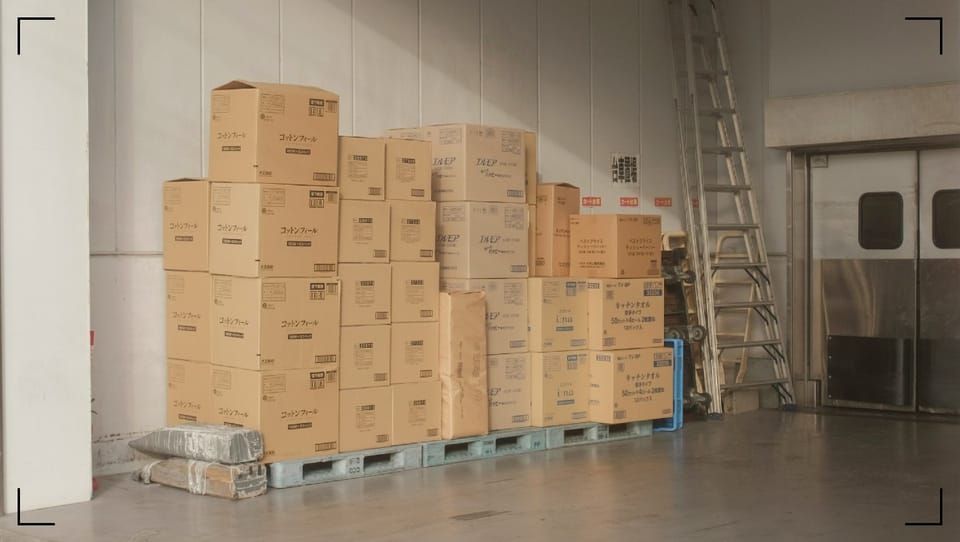
You’re standing in a dark hallway with boxes stacked to the ceiling. Every box says “memories.” Some are labeled wrong. Some are open. And if you trip, you don’t just break a plate. You crack a decade.
That’s what it feels sometimes to move the Apple Photos library to a new Mac when you care about staying tidy, keeping edits, and not breeding duplicates like dust bunnies under a radiator.
The good news: Apple Photos libraries are portable. The bad news: Apple Photos is polite enough to let you make a mess.
The fast path
Use the Migration Assistant and don’t get clever
If you’re moving to a new Mac and you want the least drama, let macOS do the heavy lifting. Migration Assistant copies your user account, your Pictures folder, and your Photos library as a single unit. One house move, one key, one set of boxes.
Use Apple’s own steps as your baseline: Apple’s Migration Assistant steps.
Fast path checklist
- Update macOS on both Macs before you start.
- Decide your stance on iCloud Photos before you migrate (more on that later).
- Run Migration Assistant on the new Mac and migrate your user account from the old Mac (or from a Time Machine backup).
- After migration, open Apple Photos. Let it sit and index.
- Confirm you’re looking at the same library (usually in
~/Pictures/Photos Library.photoslibrary). - Don’t copy a second library “just in case” unless you label it clearly and keep it offline.
If your library is under a few hundred GB and you trust your Wi-Fi or your wired network, this path is usually clean enough to eat off.
The careful path for large libraries
Copy the library package, then point Photos at it
Big libraries don’t like interruption. They don’t like flaky networks. They don’t like half-finished transfers. If your Apple Photos library is huge, or your new Mac has less internal storage than your old one, treat the library like an archive box you carry with two hands.
This path is also used when you want the library on an external SSD.
Apple’s storage rules matter here because Photos is picky about what it considers “safe.” Use Apple’s guide to moving your Photos library to stay inside the lines.
Careful path steps for a clean and controlled move
- Quit Photos on the old Mac. Not “close the window.” Quit.
- In Finder, open your Pictures folder and find
Photos Library.photoslibrary. - Copy that file to your target:
- To an external SSD formatted APFS (best).
- Or directly to the new Mac’s internal storage if you have room.
- When the copy is done, eject the drive properly (if you used one). No yanking cables. No power naps mid-write.
- On the new Mac, hold Option while opening Photos.
- Click Other Library, select the copied
Photos Library.photoslibrary, then open it. - If you use iCloud Photos, go to Photos Settings and confirm which library is the System Photo Library before you touch the iCloud switch.
Think of the library as a sealed evidence bag. You don’t dump it out on the floor and sort it again. You move it intact.
How duplicates happen
And how you keep them from happening to you
Duplicates rarely show up with a trumpet. They slide in through side doors.
Duplicate trap 1: Importing a library as if it were photos
A Photos library is a package file. It contains originals, edits, database files, thumbnails, and the whole back room.
If you drag Photos Library.photoslibrary into Photos and treat it like a folder of images, you’re asking for a bad time. Don’t “import” the library contents. Open the library (Option key at launch) or migrate it as a single library.
Duplicate trap 2: mixing multiple libraries with iCloud unintentionally
Photos can manage multiple libraries, but iCloud Photos only works with the library marked as the System Photo Library.
Here’s where people get burned:
- You open Library A on the new Mac.
- iCloud Photos is on, so it starts syncing Library A.
- Later, you open Library B “just to check something.”
- Now you’re tempted to turn on iCloud for Library B too, or you forget which one is the system library.
Result: confusion, missing items, and sometimes duplicates when you start merging or re-importing to fix what you think is missing.
Duplicate trap 3: enabling iCloud Photos mid-transfer without a plan
If you use iCloud Photos, your best move is to stick with the boring consistency.
- If iCloud Photos was on before, keep it on, but avoid opening half-copied libraries.
- If you turned it off to do a careful copy, leave it off until the library is fully copied, opened, and stable on the new Mac.
- Don’t sign in, panic, toggle iCloud on, then off, then on again. That’s how you get sync churn and “I swear I had that photo” headaches.
Duplicate trap 4: doing two moves and calling it “backup”
Migration Assistant plus manual copy is not a backup. It’s duplication roulette.
A real backup is separate and labeled. Time Machine, an external clone, a second drive kept unplugged. The move itself should occur once, cleanly, using a single method.
Final checks that keep the archive honest
When you’re done, you want proof, not vibes.
- In Photos, spot-check a few edited images. Make sure crops, filters, and Live Photo behavior look right.
- Go to Photos Settings and confirm the library you opened is the one you intended (and whether it’s set as System Photo Library).
- If you use iCloud Photos, let syncing finish before you start deleting anything on either Mac.
- Look at Photos’ built-in Duplicates view (if it appears). Treat it like a suspect list, not a death sentence. Review before you merge.
- Keep the old Mac or the old library copy untouched for a week or two. Storage is cheaper than regret.
Conclusion
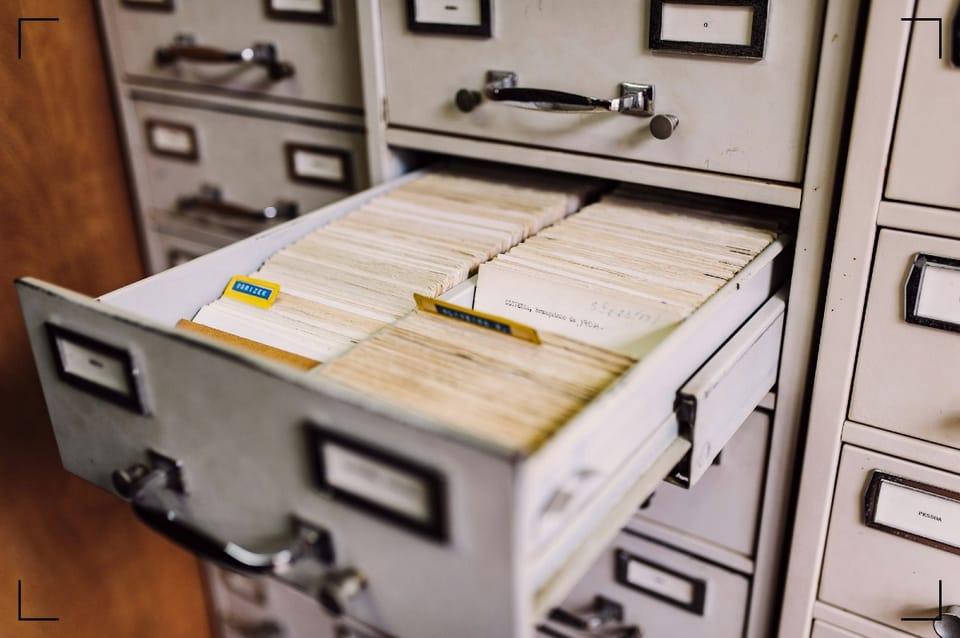
Moving a Photos library is like moving an old file cabinet, heavy, stubborn, full of sharp corners. You don’t want to scatter it across the street and call it “organized.”
Choose the fast path if your setup is simple. Choose the careful path if your library is big or your nerves are thin. Either way, keep one library as the source of truth, don’t import the library like it’s loose photos, and don’t flip iCloud on mid-move without a plan. Clean transfer, clean record, no duplicates.